How to Share a SCORM Course for Review — Without an LMS
You’ve finished the first draft of a course — a compliance module, an onboarding path, a client project — and now you need eyes on it. A subject-matter expert has to check the facts. A manager has to sign off. A client wants to see it before it goes live. There’s just one problem: none of them have your authoring tool, and uploading it to an LMS just so a few people can look at a draft is overkill.
So what usually happens? You export the SCORM package, email the ZIP, and ask everyone to unzip it and open the right HTML file. Feedback trickles back through email, Slack, and the occasional voice note, in no particular order, referencing “the slide with the blue thing.” By round three, nobody’s sure which version they’re looking at. This guide covers how to share a SCORM course for review cleanly — and collect feedback in one place — without standing up an LMS.
Why sharing a course for review is harder than it should be
SCORM was designed for one job: letting a course and a Learning Management System exchange data like completion and score. It was never designed for the messy, human step that comes before delivery — getting a draft in front of reviewers who don’t live in your tools.
Technically, a SCORM package is just HTML, CSS, and JavaScript in a ZIP, so it can run in a browser without an LMS. But “can technically run” and “easy to share with a busy stakeholder” are very different things. The gap between them is where review processes go to die.
The usual workarounds (and their trade-offs)
Every method below works. Each also has a catch worth knowing before you commit:
- Email the ZIP. Fast, but you’re asking non-technical reviewers to unzip a folder and find the right
index.html. Turn off LMS reporting first, or it throws errors. Feedback comes back unstructured. - Host the files yourself (a web server or FTP). Gives you a shareable URL, but it’s a manual upload every time you make an edit, and there’s no place for comments.
- GitHub Pages. Free and stable, popular with instructional designers building portfolios — but it’s a developer workflow, and again, no feedback layer.
- SCORM Cloud invitations. The go-to for years: upload the package and send invite links. It works well, but the free tier caps you at a small number of active registrations, and it’s a separate platform to manage on top of your authoring tool.
- Articulate Review 360. The gold standard for in-context comments — reviewers mark up slides and you resolve them in one place. The catch is that it’s tied to an Articulate 360 subscription, which is priced for teams, not solo creators or small shops.
- A dedicated review tool (like zipBoard). Purpose-built for feedback, but it’s another paid tool layered on top of the one you already pay for.
Notice the pattern: the tools that make sharing easy don’t handle feedback, and the tools that handle feedback well cost enterprise money or lock you into one ecosystem. For a lot of course creators — freelancers, consultants, in-house teams of one, experts turning their knowledge into training — none of these fits neatly.
The simpler way: a review link built into your authoring tool
The cleanest fix is to not leave your authoring tool at all. If the tool that builds the course can also hand you a shareable review link, the whole export-host-email dance disappears.
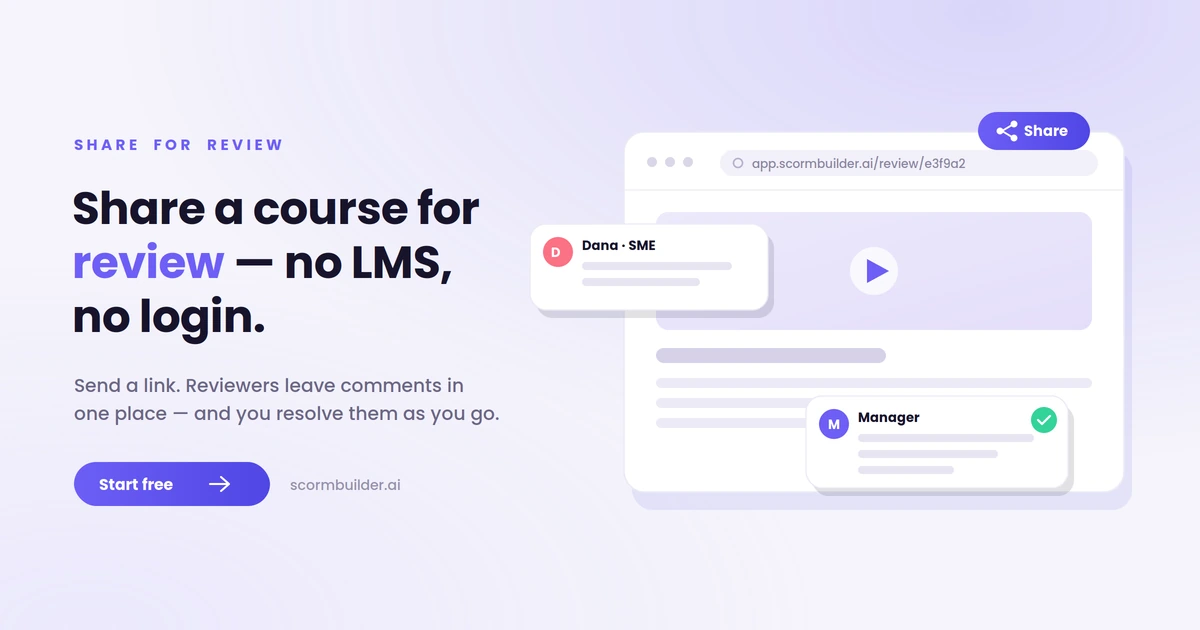
That’s the approach SCORMBuilder.ai takes. From inside the editor you click Share, and you get a public review link you can send to anyone. It works like this:
- No LMS, no account, no install. Reviewers open the link in any browser, on any device. They don’t sign up or log in.
- Always the current version. The link renders your latest saved draft live, so when you make an edit, reviewers see it — no re-exporting and re-sending.
- Comments built in. Every review link carries a comment thread. Reviewers leave feedback everyone with the link can see, so you’re not stitching together five inboxes. You mark each comment resolved as you action it — the same “close the loop” workflow the expensive tools are praised for.
- Know who’s reviewing. Optionally ask viewers for their name, so a comment reads “Dana, on the safety section,” not “anonymous.”
- Turn it off anytime. Revoke a link when the review round is done.
Crucially, this sits alongside real delivery rather than replacing it. A review link is for viewing and feedback — it deliberately doesn’t track completion or scores. When the course is approved, you still export a proper SCORM (or xAPI/cmi5) package and upload it to your LMS for full tracking.
How to share a course for review in practice
The workflow is short enough to run in under a minute:
- Open your course in the editor and click Share.
- Create a review link. It’s copied to your clipboard automatically. If you’d like named feedback, toggle “ask viewers for their name” first.
- Send the link to your SMEs, managers, or client — email, Slack, wherever they are.
- Collect comments in one place. Reviewers open the course, click the comment button, and leave feedback. You read it all from the Share panel and mark items resolved as you go.
- Iterate live. Make edits in the editor; the same link always shows the latest version. No version-number confusion.
- Ship it. Once it’s approved, export SCORM/xAPI/cmi5 and deliver through your LMS.
If you don’t have a draft yet, you can go from raw material to a reviewable course fast — for example, by converting a PDF into a SCORM course and sharing the result for review the same day.
A few tips for a review round that doesn’t drag
The tool removes the friction; a little process removes the rest:
- Set the number of rounds up front. “Two rounds, then we lock” prevents endless nitpicking.
- Ask for specific feedback. “Is anything factually wrong or unclear?” gets better comments than “what do you think?”
- Keep it in one channel. Point everyone at the review link’s comments so feedback doesn’t fragment across email and chat.
- Resolve as you go. Marking comments done keeps the thread honest about what’s left.
- Preview on mobile. Many reviewers will open the link on a phone — check it looks right there too.
Share your first course for review
If a finished-but-not-yet-approved course is sitting in a folder waiting on sign-off, the fastest way to unblock it is to send a link instead of a ZIP. Start free at SCORMBuilder.ai — build or import your course, click Share, and get feedback flowing in one place today. When it’s approved, export a SCORM package and drop it straight into your LMS.
Frequently Asked Questions
How do I share a SCORM course for review without an LMS?
A SCORM package is HTML at its core, so it can be viewed in a browser without an LMS. The catch is getting it there — traditionally you'd host the files on a web server, GitHub Pages, or SCORM Cloud, or email the ZIP and ask people to open index.html. The simplest option is an authoring tool that generates a public review link for you, so you click Share, send the URL, and your reviewers open the course in any browser with no account and no LMS.
Can reviewers leave comments directly on a course?
With the right tool, yes. Dedicated review tools like Articulate Review 360 let stakeholders comment in context, and SCORMBuilder.ai now includes a built-in comment thread on every review link — reviewers add feedback everyone can see, and you mark each comment resolved as you work through it. Without a built-in tool, feedback usually scatters across email, Slack, and spreadsheets.
Is there a cheaper alternative to Articulate Review 360?
Articulate Review 360 is excellent but comes bundled with an Articulate 360 subscription, which is priced for teams. If you mainly need to share a course and collect comments, an authoring tool that includes review links and commenting — like SCORMBuilder.ai at $29/month with a free trial — covers the same core workflow without the enterprise price tag.
Do review links track completion or scores?
No — a review link is for viewing and feedback, not delivery. It intentionally doesn't record completion, scores, or progress, because that's the LMS's job. When your course is approved and ready to deliver, you export a SCORM, xAPI, or cmi5 package and upload it to your LMS for full tracking.
Will reviewers need to install anything or create an account?
No. A good review link opens the course as a normal web page in any browser on any device. Reviewers don't sign up, install software, or log in — they just click the link. You can optionally ask them to enter their name so you know who left which feedback.